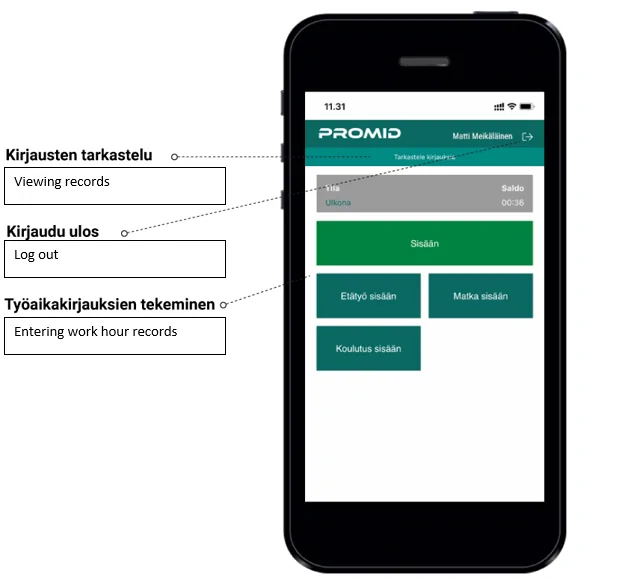
Mobile App Setup
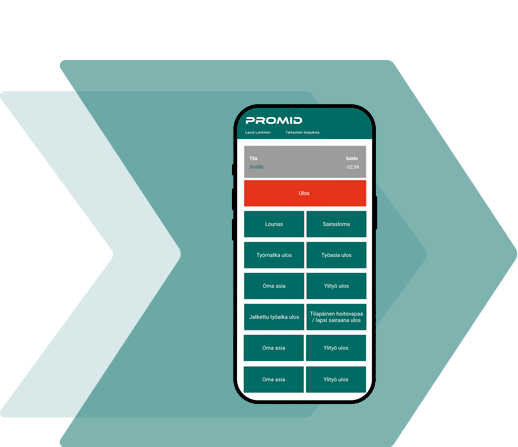
With the Promid mobile app, you can easily record your working hours in the time tracking system.
You can install the app on multiple devices, but you can only use it on one device at a time.
Recording your working hours with the mobile app is quick and easy and your entries are automatically transferred to the time tracking system. An internet connection is required to record working hours using the app.
1. Downloading the App
Downloading the App from Google Play
1. Click the button below to open Google Play, where you can download the app.

You can also go directly to play.google.com and search for the Promid app.
2. Install the mobile app from Google Play.
Note: To use the mobile app, your organisation must have registered you as a Promid user.
Downloading the App from App Store
- Click the button below to open the App Store, where you can download the app.

You can also go directly to apps.apple.com and search for the Promid app.
2. Download and install the app.
Note: To use the mobile app, your organisation must have registered you as a Promid user.
2. Logging In
Logging In with Email
1. Open your web browser and go to your organisation’s Promid address (e.g. company.promid.fi) provided by your organisation’s Promid main user.
2. Log in to the system.
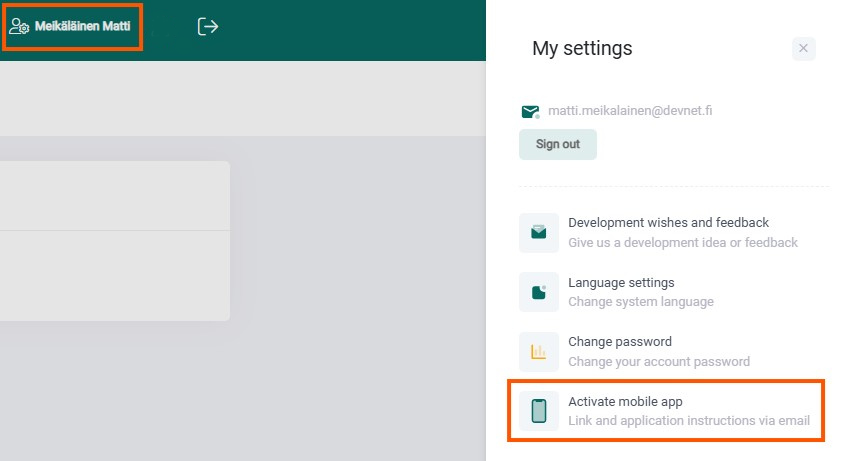
3. Open your profile by clicking your name.
4. Click ”Activate mobile app”. You will receive an email with instructions on how to start using the app.
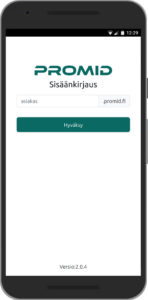
5. Launch the app. You will be taken to the sign-in screen, where you will be asked to enter the first part of your company’s Promid address. Then tap ”Hyväksy”.
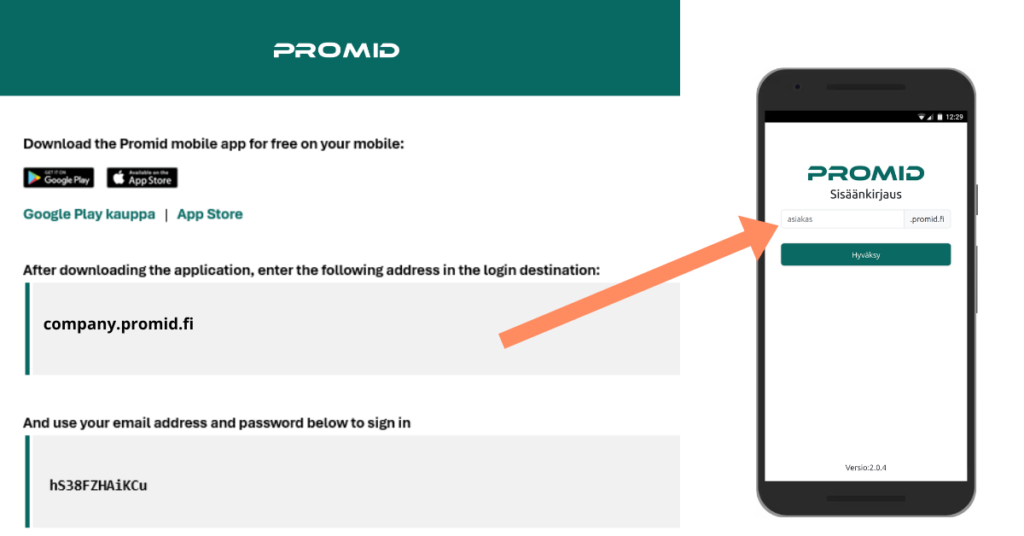
6. Enter your username and activation code.
- Username (käyttäjätunnus): Your email address.
- Activation code (aktivointikoodi): The one-time activation code sent to your email.
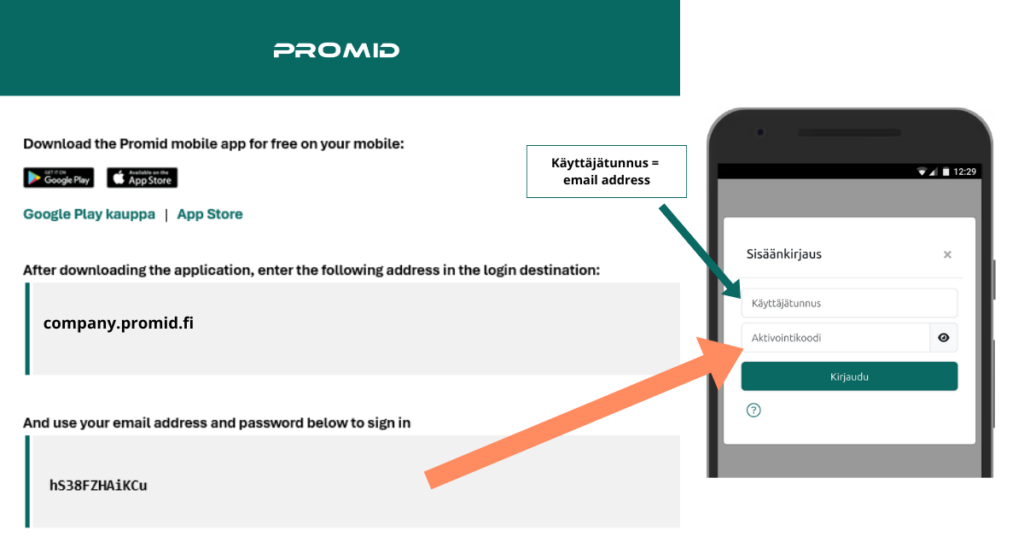
7. Log in to the system. The app is now ready to use!
Do you need a new activation code? 💡
The Promid mobile app activation code is for one-time use only. If you log out of the app or reinstall it on your device, repeat the setup steps above.
Logging in with Entra ID
1. Launch the app. You will be taken to the sign-in screen, where you will be asked to enter the first part of your company’s Promid address (e.g. company.promid.fi). Then tap ”Hyväksy”.
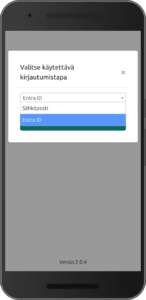
2. Select Entra ID as your login method from the drop-down menu and tap ”Jatka”.
3. The app opens a sign-in window where you complete the Entra ID sign-in. If you have been registered as a Promid user by your organisation, you can sign in to the system and the app is ready to use.
Promid Mobile App Overview